


How to Easily Connect Your FLO Home Charger
Ready to start? Here’s what you’ll need:
- An Installed FLO Home Charger
- Have an electrician install your hardwired charger or make sure your plug-in charger is installed correctly by following the installation guide.
- The FLO App on Your Smartphone
- Download the FLO app from the Apple App Store or Google Play Store.
- A FLO Account
- Open the app and either create a new account or log into your existing FLO account.
- Wi-Fi
- Ensure your Wi-Fi reaches your charger location. Test this by using your phone with Wi-Fi next to the charger. To ensure that it’s the Wi-Fi network that is supplying the data, switch your phone to airplane mode. If needed, use a Wi-Fi extender or mesh network.
- Have your Wi-Fi network name and password ready.
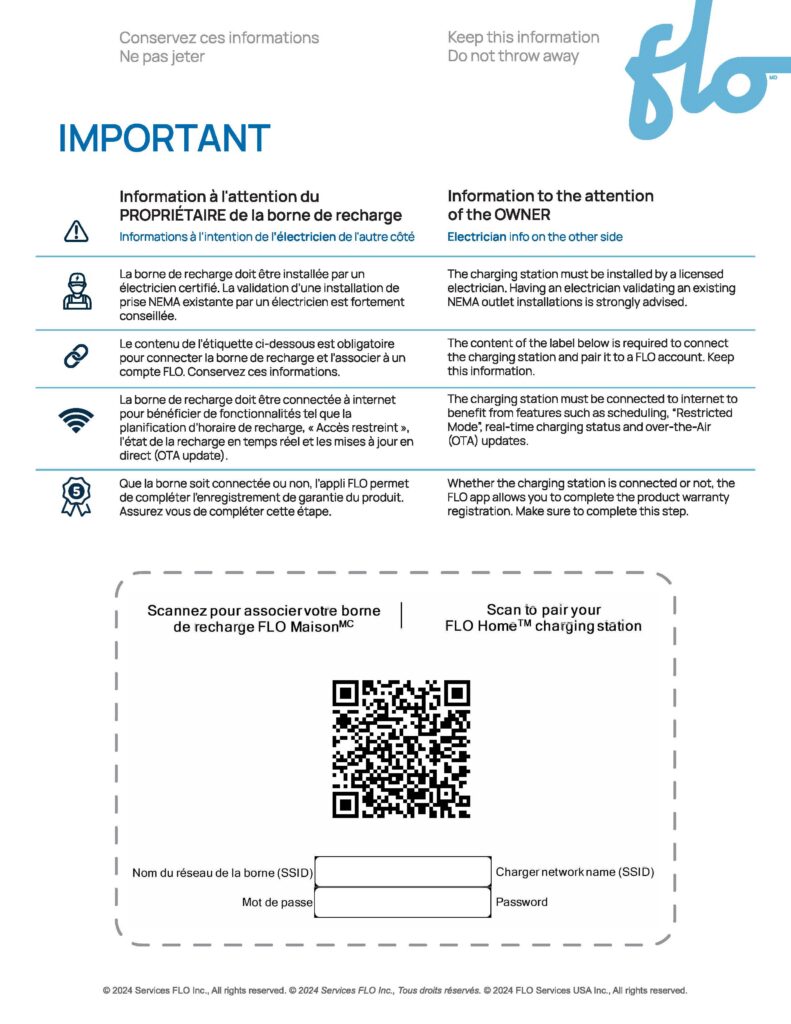
- Setup Document From the FLO Home Charger Box
- This includes the QR code or information card you’ll need for setup.
Now you’re ready to connect your charger to use the smart features – this should only take about 5 minutes!
Stay near your charger as you’ll need to interact with it during the process.
Unless stated otherwise in a specific step, the charging station light should always be solid green. If it isn’t, refer to the installation guide for a description of each light color and its meaning.
-
- Open the FLO App
- Go to the “My Charger” tab
- Select your charger model from the list.
- Follow the steps in the app
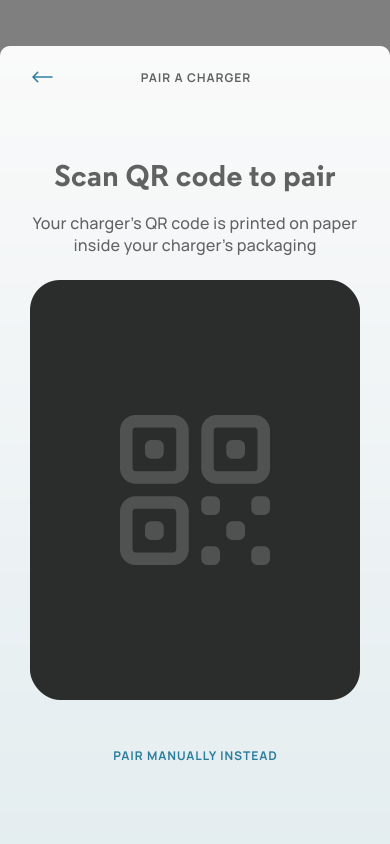
- Scan the QR code from the charger box or manually input the information from the card.
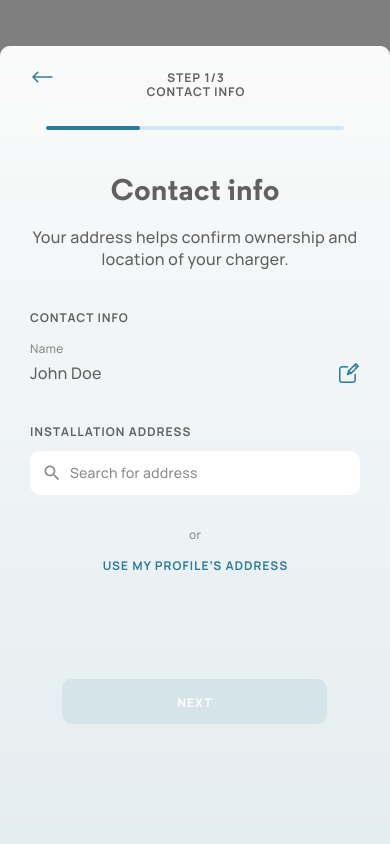
- Enter your name and address.
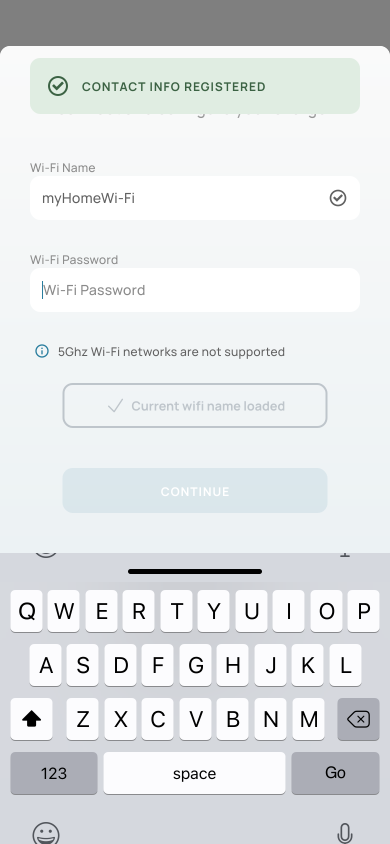
- Input your Wi-Fi network name and password.
- Press and hold the button on your charging connector until the light turns orange. After 30 seconds, the orange light will start blinking on its own. Once it blinks, tap “My lights are blinking” in the app to proceed.
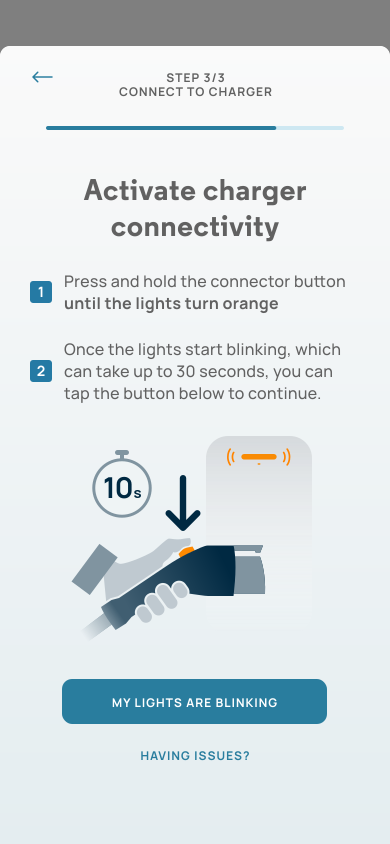
- Scan the QR code from the charger box or manually input the information from the card.
- Tap “Join” to allow your charger to access your Wi-Fi
- Note: Your charger may take up to 30 seconds to connect to your Wi-Fi. During this time, the light will keep blinking orange.
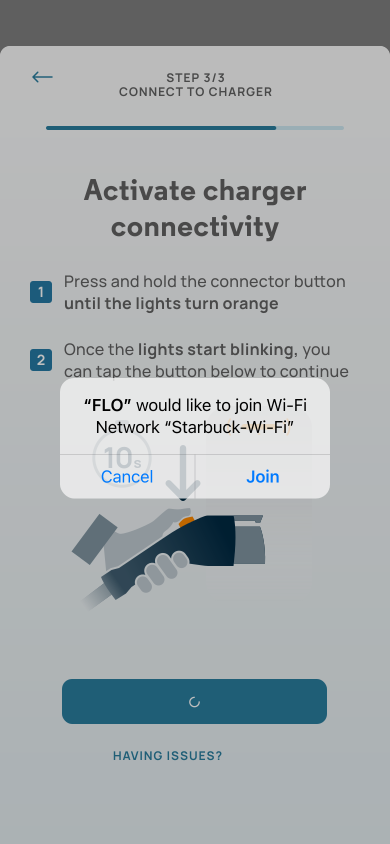
- Note: Your charger may take up to 30 seconds to connect to your Wi-Fi. During this time, the light will keep blinking orange.
Congratulations! Your charger is now connected!

FAQ
-
- How do I create a schedule?
- Tap “My Charger” in the FLO app
- Tap “Set a schedule”
- You have two scheduling options :
- Simple schedule: Set a basic weekday and weekend schedule to charge during specific hours.
- Custom schedule: Manually create a detailed schedule for every day of the week, with up to 8 time periods per day
- How do I create a schedule?
-
- What happens if my Wi-Fi goes out and I have created a schedule?
- Your charger will remember the schedule and not allow or limit charging during the schedule that is setup. Once the charger is reconnected, you can change the schedule and apply those changes for future charging sessions.
- What happens if my Wi-Fi goes out and I have created a schedule?
-
- What happens if my Wi-Fi goes out and I have restricted access turned on?
- Restricted access requires an online connection to control your charger’s access remotely. If your charger loses connection after restricted access is enabled, it will default back to its original state, allowing you to charge until the connection is restored.
- What happens if my Wi-Fi goes out and I have restricted access turned on?
-
- What do I do if the connectivity light on the charger is solid red?
- This means your charger has lost connection to your internet connection. Open your FLO app, tap ‘My Charger’ and tap ‘Connect your charger’ to follow the steps to get it back online.
- Verify that your Wi-Fi is on.
- Make sure your Wi-Fi signal is strong enough to reach your charger.
- If you changed your Wi-Fi name or password recently, you may reset your Wi-Fi by providing the new credentials.
- This means your charger has lost connection to your internet connection. Open your FLO app, tap ‘My Charger’ and tap ‘Connect your charger’ to follow the steps to get it back online.
- What do I do if the connectivity light on the charger is solid red?
-
- What do I do if the connectivity light on the charger is blinking orange?
- This means your charger is currently unable to connect to the FLO server. Give us a call at 1-855-543-8356 or send us an email at service@flo.com.
- What do I do if the connectivity light on the charger is blinking orange?
-
- What does my station’s light color mean?
- For details on each light color, refer to your installation guide.
- What does my station’s light color mean?
-
- I am having trouble completing the steps.
- A quick restart can help. Just flip the breaker off for 5 seconds and back on.
- I am having trouble completing the steps.

Related Resources





FLO operates one of the largest EV charging networks in North America for drivers to plug in wherever they are: at home, work or on the go.
© 2026 FLO Services USA Inc. All Rights Reserved.
|Privacy Policy|Website Terms Of Use|Driver Terms of Use